
Image 2.5Make a video

Google Flow frame workflow

Google Flow Frame to Video

Learn how to use start and end frames in Google Flow, write the transition prompt, choose a compatible model, and decide when a focused frame-to-video workflow is faster.

Guide page. Framov does not claim to reproduce or provide the Google Flow workspace.

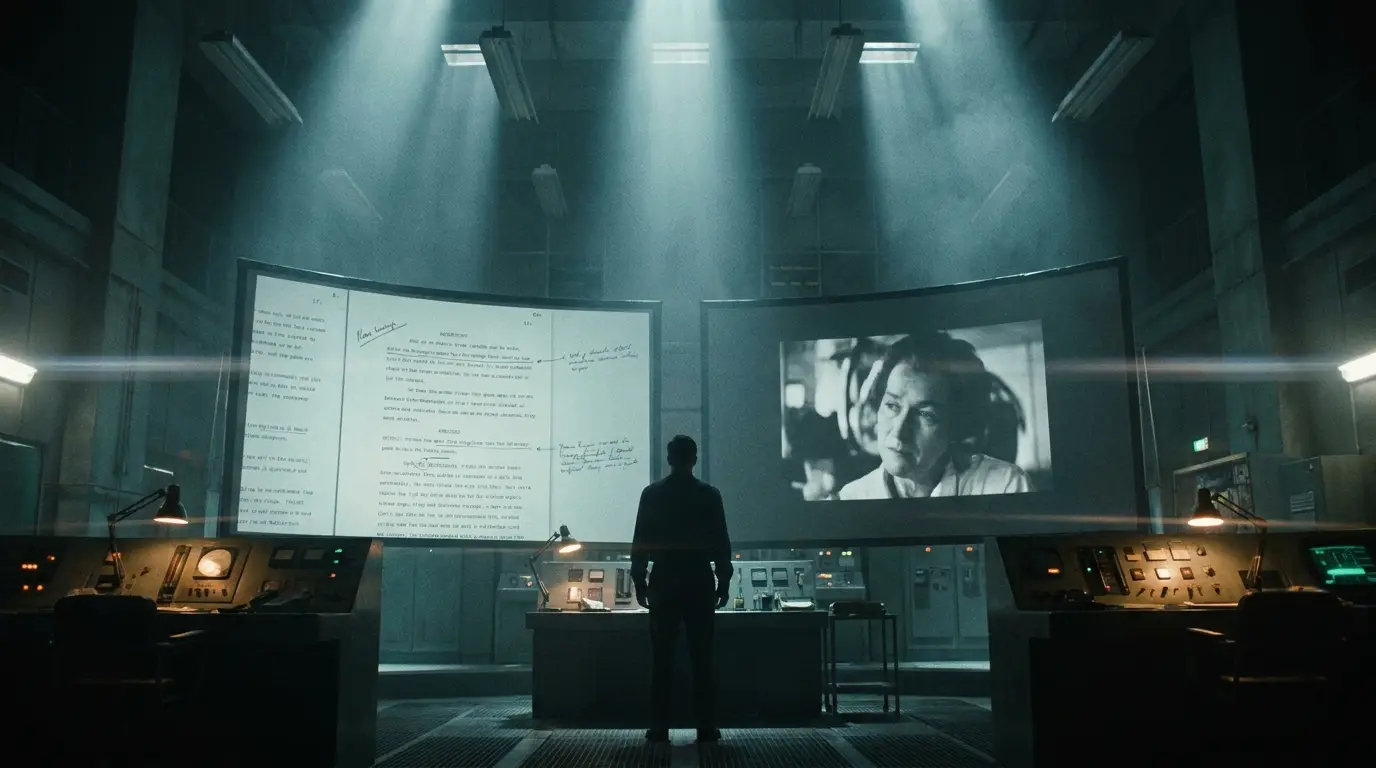
Source frame
01 / Source frame
GOOGLE FLOW

Motion synthesis

Generated video destination frame
02 / Generated direction

The useful answer

In a Flow project, choose Video, switch the input mode to Frames, add a start frame and optionally an end frame, describe the action between them, select a model that supports the chosen frame mode, then generate. Feature availability and credit cost can vary by model, plan, and region.

  1. 01

    Open a Flow project and select Video.

  2. 02

    Choose Frames and add the start image.

  3. 03

    Add an end frame only when the destination matters.

  4. 04

    Check the active model, settings, and credit estimate before generating.

Start with the workflow

Three decisions shape the result.

01

What Is Frame to Video in Google Flow?

Frames to Video uses supplied images as visual boundaries for a generated clip. A start frame anchors the opening; an optional end frame gives the model a destination. The prompt explains the motion, camera behavior, and transition between those states.

Flow is a broader filmmaking workspace: frames can sit alongside ingredients, generated assets, scene building, and extension tools. Check the active model because Google documents frame support by model rather than promising every feature in every mode.

02

How to Use Frame to Video in Google Flow

Open or create a Flow project, select Video in the prompt box, choose Frames, and add the visual inputs. Write the prompt chronologically: main action, camera movement, environmental response, then the way motion should settle.

Before generating, review aspect ratio, duration, output count, model, and the credit estimate shown in Flow. If a selected model does not support the frame feature, Flow reports the incompatibility.

03

How to Add a Start Frame

Use a clean image with the subject, composition, lighting, and viewpoint you want at the opening. Avoid interface screenshots, heavy compression, and motion blur unless those artifacts are intentional.

A start-frame-only generation leaves the ending open. This is appropriate for camera moves, subtle character action, product motion, atmosphere, and other shots where only the opening must be fixed.

Visual studies

Test motion against the frame.

01

Start-frame animation

Anchor the opening composition, then direct one clear camera move or subject action.

02

Planned destination

Use compatible start and end images when the final composition has to be part of the brief.

03

Scene workflow

Flow is strongest when a clip belongs to a larger asset, ingredient, and scene-building process.

Prompt patterns

Write the movement, not the still.

01

A slow dolly-in toward the subject; curtains move gently in the window light; preserve the face and wardrobe; settle into a still close-up.

02

The product rotates one quarter turn while the camera remains locked; reflections travel naturally across the surface; finish on the supplied end composition.

03

The camera tracks left through the doorway as the room changes from morning to evening; continuous architecture, no cut, motion slows at the final frame.

Working note

How to Control the End Frame

Add the destination image in the end-frame slot and use a compatible first-and-last model. Keep orientation, subject scale, and viewpoint reasonably compatible, then tell the motion to slow, settle, and hold on the supplied ending composition.

An end frame is guidance, not a pixel-perfect edit guarantee. Reduce competing actions and use a longer duration when the visual difference requires more time.

Working note

Google Flow Frame-to-Video Examples

A useful test set includes a subtle camera move, a product turn, a character pose change, and a scene transformation. For each result, compare identity, geometry, motion continuity, and whether the final composition is actually reached.

Do not treat unrelated showcase clips as proof of a Flow result. Evaluate examples only when the source frame, prompt, model, settings, and generated output are disclosed together. Google publishes current demonstrations in its Flow and Veo product materials.

View Google Flow Instructions

Working note

Google Flow vs. Standard Image-to-Video

Standard image-to-video usually starts from one image and lets the model decide how the shot develops. Flow can add a planned destination and combine frames with a larger project workflow.

Use a focused generator when the job is simply uploading frames, describing motion, and comparing supported models without building a larger Flow project.

Try First and Last Frame to Video

Make the distinction

Google Flow vs. direct Veo generation

WorkflowBest forTrade-off
Google FlowProjects, assets, ingredients, scene buildingMore workspace setup
Veo in FramovA focused frame-to-video generationNot the Flow editing workspace
Single-image videoOpen-ended motion from one frameNo fixed destination

Common questions

Clear answers, without the gloss.

Is Google Flow frame to video free?+

Access, daily credits, and model costs depend on the current Google plan and region. Check the credit estimate in Flow before generating.

Can Google Flow use a first and last frame?+

Yes. Google documents start-and-end frame generation for supported models in Flow.

Why is Frames to Video unavailable?+

The selected model, account, region, or input may not support that feature. Switch to a supported model and review Flow feature availability.

Is Framov the same as Google Flow?+

No. Flow is Google’s filmmaking workspace. Framov provides a separate multi-model generation workflow and can offer Veo as a model option.

Official references

Google Flow creation guideFlow model feature matrix

Move from reading to making

Create Video From Frames Without Building a Flow Project

Upload your visual boundaries, describe the motion, and use a focused frame-to-video workflow.Open Framov Generator